



Integrate ChatGPT Codex IDE Extension on Visual Studio Code platform and start developing applications like a pro developer.
Codex AI uses an extension to connect with Visual Studio Code. However, you will have two options when you are working with ChatGPT Codex AI on Visual Studio Code. You can either download Codex from Visual studio IDE or use the extension marketplace on visual studio code.
Here, we will learn how we can integrate Codex IDE Extension on the Visual Studio Code platform.
Table of Contents
Codex IDE Extension and Visual Studio Download: Key Highlights
- Codex AI is a OpenAI Coding agent which can be paired in your IDE (Integrated Development Environment) on your device.
- You will need the OpenAI ChatGPT application to make the Codex IDE extension work.
- Codex IDE extension is a complete one in all packages when you need help with debugging a part of code and faster development.
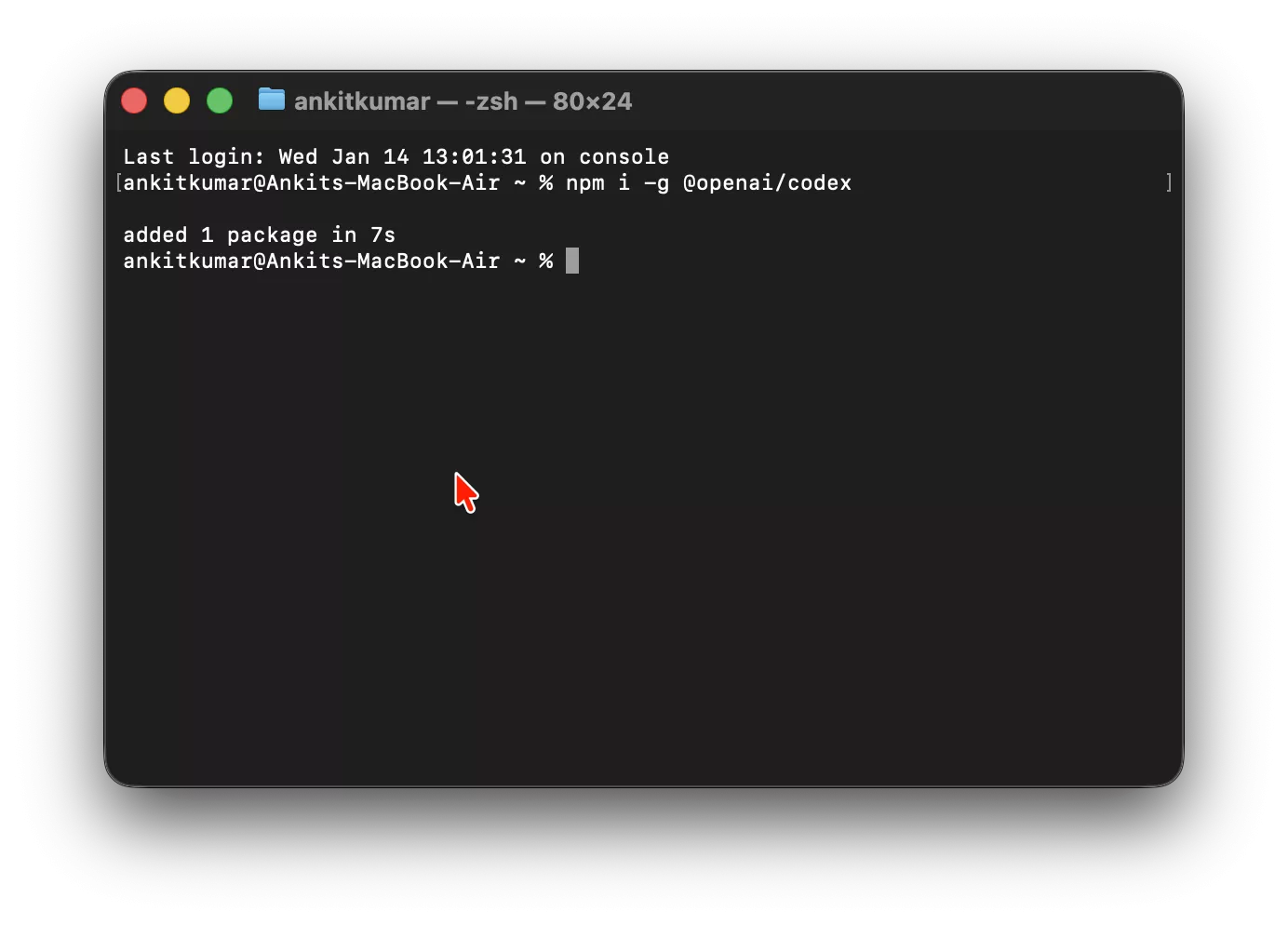
- You can integrate Codex Using npm commands using terminal.
- Codex CLI model achieved more than 70% coding score when compared against available data for different ai models and attempts.
- Codex can navigate to your repo to make changes, run commands, and execute tests.
- Codex IDE Extension can be used for brainstorming, implementing new features, fix bugs in a coding environment.
Is Codex IDE Extension Available on ChatGPT Free Version?
ChatGPT Free version is not sufficient to get you started and utilise the full features with Codex. However, you can get your ChatGPT Plus subscription for Free. Switch to your ChatGPT Premium version and integrate Codex in your workflow.
The Codex extension can be integrated on Visual Studio Code and you definitely will not need a Visual Code premium. You can easily use the Codex AI platform.
| ChatGPT will only access code in active editor panes. To work with multiple files at the same time, open them in split editors: Codex Extension |
How to Download Codex OpenAI For Visual Code?
As we are using the Codex IDE Extension we can download it directly from the official website of OpenAPI.
Direct Download Link For Codex Download

| You can access ChatGPT → Codex directly from the top. |
Make Sure you Have ChatGPT Desktop Version on your Device
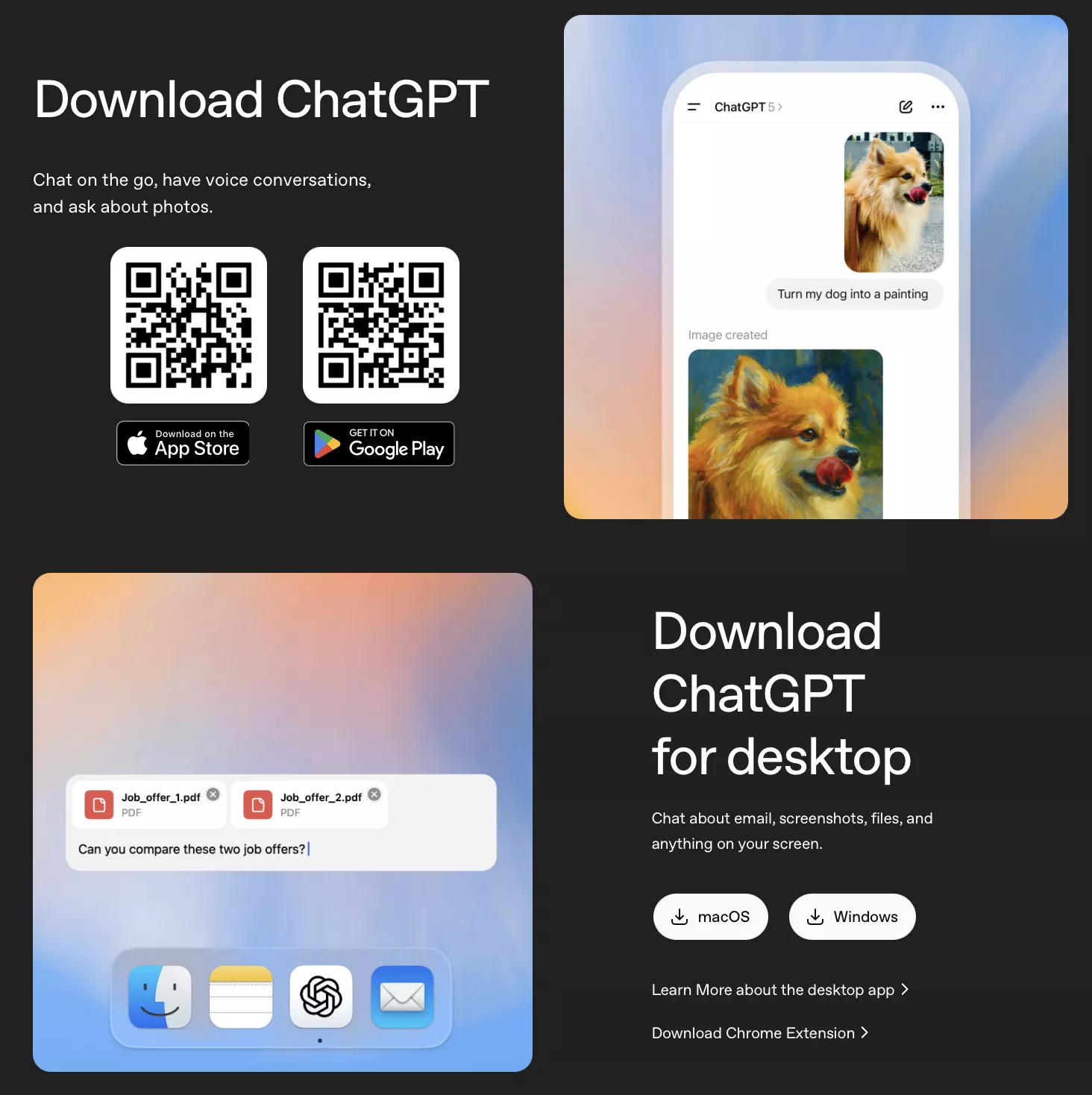
You have to download the ChatGPT desktop version on your device. You can download the desktop version from the official website of OpenAI.
 |
- Login on your ChatGPT desktop application using your Premium account.
You can use the link below to directly download ChatGPT for your macOS and Google Play Store device.
Install OpenAI Codex CLI using Terminal
Install the OpenAI Codex CLI directly using your terminal on your device.
 |
How can we use Codex IDE Extension with Visual Studio Code?
Follow the simple step by step guidelines to integrate Codex IDE Extension with Visual Studio Code.
Step 1: Open VS Code
Open the Visual Studio Code IDE on your local device. You can follow up these same steps to use Codex with other Code IDEs like Cursor, Windsurf, Atom, and more.
Step 2: Search for Codex Extension in the Extension tab
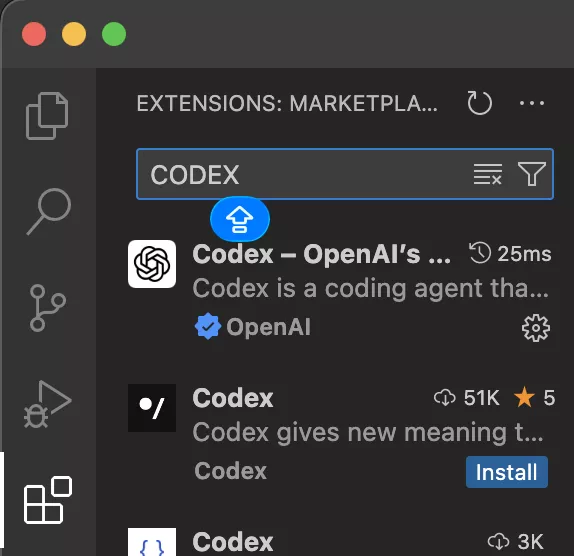 |
In the left sidebar of Visual Studio Code you have to search for the Codex extension.
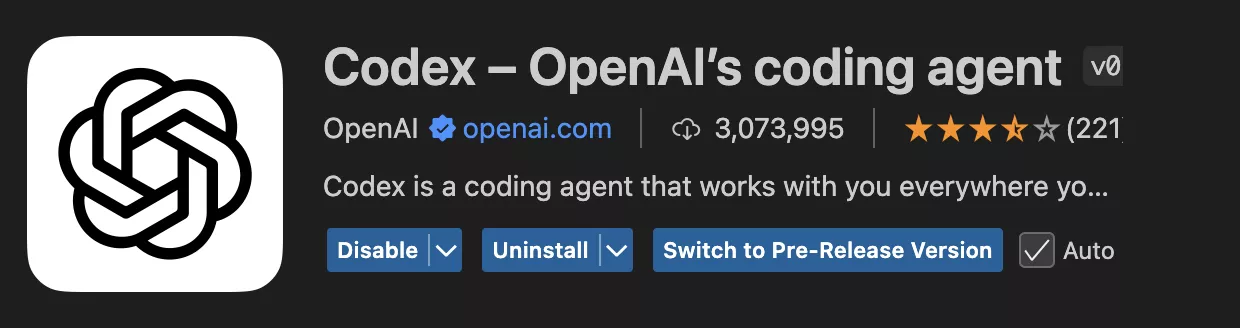 |
Make sure you download the one that is listed from the OpenAPI marketplace.
Step 3: Connect ChatGPT and Visual Studio Code
First of all close the active Visual studio code and then restart. Now the real fun begins here. If you follow all the steps properly you can easily be able to open Codex IDE Extension in a separate window.
Step 4: ChatGPT: Connect
 |
You can use the keyboard shortcut keys ⌘ + Shift + P on macOS and in place of ⌘ place you can use simple Control (Ctrl) button if using Windows device.
You can either type “ChatGPT: Connect” and “ChatGPT: Open chat” to activate the Codex window with ChatGPT.
| You can also use shortcut keys like “option + space” on macOS devices to directly open the Codex window. |
Step 5: Start and Develop!
You are now ready to build applications like a Pro!
Codex IDE Extension and Visual Studio Code FAQs
Q1. Can I use Codex with Visual Studio Code for free?
Ans: Yes, you can use Codex for free with Visual Studio code, Cursor, WIndsurf and other IDE platforms.
Q2. Where to download the Codex on Visual Studio code?
Ans: You can download the Codex using Extension marketplace or visit the OpenAI official site to download.
Q3. Does OpenAI train Codex on usage?
Ans: OpenAI does not train codex by default. However, the API organisations can choose to opt in to share the API data with OpenAI. You can limit permissions based on your preference.
Q4. Can I run Codex in my IDE?
Ans: You can easily run either Codex web, Code extension, or Code CLI models with your IDEs.